The Spike Volleyball Story Multiplayer Setup
The real fun starts when you face a friend or a live rival across the net. This guide makes the The Spike Volleyball Story multiplayer setup simple, so you can stop playing alone today.
The Spike Volleyball Story is a fast 3v3 volleyball game made by SUNCYAN Inc., the indie studio behind the series. It grew into a mobile hit and now has a PC version on Steam. Both versions let you team up with a buddy or go head-to-head with real players around the world.
You do not need to dig through long videos or scattered forum posts. We walk you through the full The Spike Volleyball Story multiplayer setup for Android, iOS, and Steam in clear steps. Each part is short, easy to read, and ready to follow right now.
Quick Answer Can You Play The Spike Volleyball Story Multiplayer?
Yes, you can play The Spike Volleyball Story in multiplayer. On mobile, you join online matches through Friend Match or Quick Match. On Steam, you invite friends with Remote Play Together or set up local two-player on one screen.
So the short version is simple. Mobile players battle online, and PC players can play online or share one screen at home. Pick the path that fits your device and read that section below.
Multiplayer Modes Explained Friend Match vs Quick Match
The game gives you two main online options, and people often mix them up. Knowing the difference saves time and avoids long waits in the lobby.
Friend Match lets you play with someone you know. You send a code or an invite, they join your room, and the match starts. This is the best pick when you want a private game with a buddy.
Quick Match drops you against a random online player from anywhere in the world. It is fast and good for ranking up. You do not need a friend online, so you can play it at any time of day.
Many players in the community call playing together “mabar,” a term from Indonesian gaming groups. Whatever you call it, both modes give you real opponents instead of the AI from story mode.
The Spike Volleyball Story multiplayer setup On Android and iOS
Mobile is the easiest place to start, since most players install the game from Google Play or the App Store. The steps are the same on both phones and tablets.
First, open The Spike Volleyball Story and finish the short tutorial if you are new. You can grab the official app from Google Play or the App Store if you have not installed it yet. The online menu stays locked until you clear the basic intro, so do not skip it.
Next, tap the multiplayer or online button on the main screen. Choose Friend Match to invite someone you know, or Quick Match to face a random player. A stable internet connection matters here, so use Wi-Fi if your signal is weak.
For a Friend Match, share your room code or send an invite through the in-game menu. Your friend enters the same code, joins your room, and you both press ready. The match begins once both players lock in.
How To Play Multiplayer On PC (Steam)
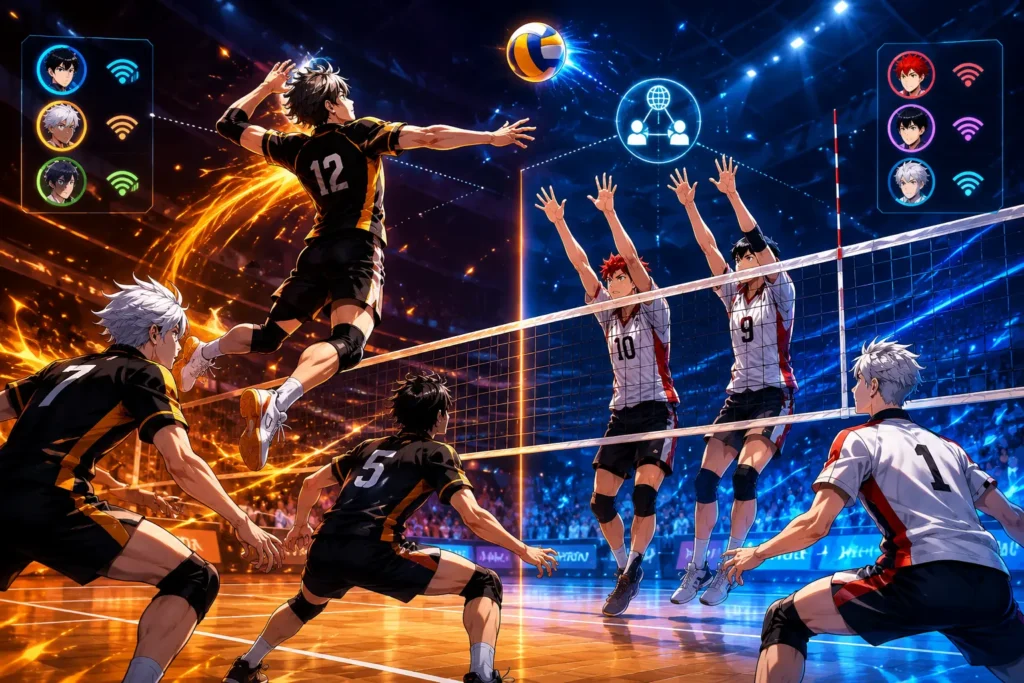
The Steam version opens up more ways to play, including sharing one screen at home. This is where the game feels closest to real couch co op with a friend next to you.
Before you start, make sure Steam is updated, and the game is installed. You also want at least one extra input device for local play, since two people cannot share a single keyboard well. A second keyboard or a gamepad works best.
There are three main PC setups. You can invite a friend with Remote Play Together, set up local two-player on one PC, or use the family share method to run two players on one account. Each one is explained below.
Invite Friends With Remote Play Together
Remote Play Together is a Steam feature that lets a friend join your game over the internet. The best part is that your friend does not need to own The Spike Volleyball Story to play. Only the host needs the game.
To turn it on, open Steam Settings and find the Remote Play tab. Make sure Enable Remote Play is switched on. This step is easy to miss, and the invite will fail without it.
Now launch the game. Press Shift and Tab together to open the Steam Overlay while in-game. Find your friend in the list at the bottom, or add them first with their Friend Code if they are new.
Right-click your friend’s name and choose Remote Play Together to send the invite. Once they accept, they appear in your match as the second player. You can also let them use their own keyboard or controller from the host menu.
Local Two-Player On One PC
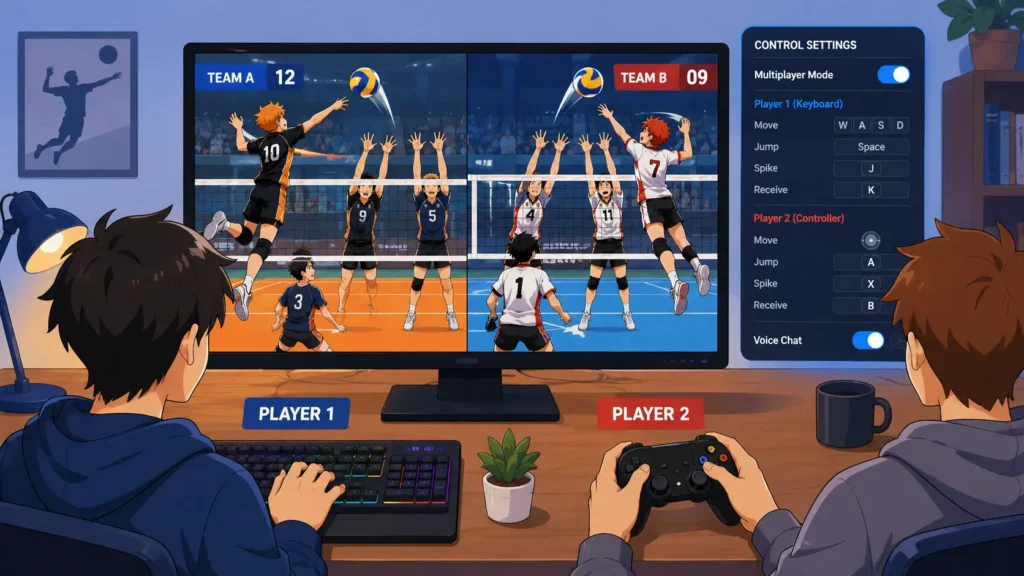
If your friend is sitting next to you, local two-player is the smoothest option. You both play on the same screen with two input devices, which feels like real couch volleyball.
Plug in your second device first, such as a gamepad or a spare keyboard. Then open the game and go into Control Settings from the menu. Switch the mode from single player to Multiplayer Mode.
Now assign devices to each player. Set Keyboard 1, Keyboard 2, or a gamepad to Player 1 and Player 2. The game lets each person control their own side, so make sure both inputs respond before you start.
Pick your characters, choose the court, and start the match. Local play has no internet lag, so it is great for practice and for close family games at home.
Family Sharing: Both Players On A Single Account
Some players want two players running on one PC without two full game copies. The family share method on Steam makes this possible by creating a second instance of the game.
The way it works is simple. You run your main Steam account, then use Steam Family Sharing with a second account that has the game shared to it. This lets you open a second copy and join your own local match as the duplicate player.
This trick has been used by the community for years to test settings, scrim, or just play both sides. It works best when you only need a quick extra player and do not have a friend free at the moment.
One safety note matters here. Only share control with people you trust. Giving another person control of your game lets them manage your characters and spend your in-game coins or gems, so be careful who you hand the second device to.
How To Make Pro Settings For Multiplayer PvP

Good settings win close matches. Most new players keep the default controls, but a few small changes give you faster reactions and cleaner spikes in PvP.
Start with sensitivity. Lower it slightly if your swipes feel jumpy, or raise it if your spikes feel slow. The right number depends on your hand speed, so test a few values in practice first.
Turn on any aim or timing guide the game offers while you learn. Once your timing feels natural, switch the guides off for cleaner screen space. Pro players rely on muscle memory more than on screen hints.
For PC, map your most used moves to comfortable keys or gamepad buttons. Keep spike, block, and receive close together so your fingers do not stretch. Smooth button layout helps a lot during fast 3v3 rallies.
Finally, set your team and roles before ranked play. Build a balanced lineup with a strong spiker, a reliable setter, and a solid blocker. A planned team beats a random one in almost every PvP match.
Tips And Tricks For Multiplayer On Android And PC
Winning in multiplayer is about smart timing, not just power. These tips work the same whether you are on a phone or on Steam, so keep them in mind during every match.
Learn the fake spike. You jump like you will smash hard, then tap light at the last second to drop the ball short. This single move catches blockers off guard and wins many surprise points.
Watch your stamina and timing during long rallies. Spamming spikes drains your meter and leaves you open. Patient players who wait for the right ball usually beat players who rush every swing.
Vary your serves and attack angles. If you hit the same spot every time, your opponent reads you fast. Mix straight shots, cross shots, and soft tips to keep them guessing the whole match.
On PC, practice with your real match device. If you plan to play with a gamepad in PvP, do not train with a keyboard. Your timing changes between devices, so practice the way you will compete.
Online PvP Strategy: Climb The Ranks
Online PvP is where the real test begins, since human players adapt in ways bots never do. A few habits will push your win rate up over time.
Block reading is the top skill. Watch which way your rival sets and lines up, then move your blocker early. A well-timed block stops a strong spike and shifts the match in your favor.
Manage your characters and upgrades between matches. Stronger stats matter at higher ranks, so upgrade your main spiker and setter when you can. A weak roster will struggle no matter how well you play.
Stay calm after a lost point. Tilting leads to rushed swings and bad serves. The best PvP players treat each rally as a fresh start, which keeps their timing clean under pressure.
Common Problems And Fixes
Even a clean setup can hit a snag. Here are the issues players run into most, with the quick fix for each one, so you spend more time playing.
If your friend cannot join a Remote Play invite, check that Enable Remote Play is on in Steam Settings. Also, confirm that both of you have a stable connection, since a weak network drops invites often.
If the second device does not respond in local play, return to Control Settings and reassign the input. Sometimes the game needs you to set Keyboard 2 or the gamepad again after a restart.
If your online match keeps disconnecting, switch from mobile data to Wi-Fi or move closer to your router. Most lag and drop issues on mobile come from a weak signal rather than the game itself.
The Spike Cross: The New Steam Version
It helps to know that SUNCYAN released a newer Steam title called The Spike Cross on September 19, 2025. It carries the same volleyball core with updated PvP and local multiplayer features.
If you play on PC, this version is worth a look for its cleaner online and couch play. The multiplayer steps in this guide, like Remote Play Together and local input setup, apply to it in the same way.
Keep an eye on updates from the developer, since the game grows with each patch. New modes and balance changes can shift the best PvP settings, so check the latest patch notes now and then.
Key Takeaways
The Spike Volleyball Story supports real multiplayer on both mobile and PC, so you never have to play alone. Mobile uses Friend Match and Quick Match, while Steam adds local and remote options.
On Steam, Remote Play Together lets a friend join without owning the game, and local two-player works with a second keyboard or gamepad. The family share method runs a duplicate player, but only shares control with people you trust.
Smart settings and patient play win more PvP matches than raw power. Learn the fake spike, read blocks early, build a balanced team, and practice with the device you actually compete on.
Frequently Asked Questions
Can you play The Spike Volleyball Story multiplayer with friends?
Yes. On mobile, you use Friend Match to invite a friend with a code. On Steam you invite them with Remote Play Together or play side by side in local two-player.
Does my friend need to own the game on Steam?
No. With Steam Remote Play Together, only the host needs to own The Spike Volleyball Story. Your friend can join the match for free as the second player.
How do I set up local two-player on one PC?
Plug in a second device, open Control Settings, switch to Multiplayer Mode, then assign Keyboard 1, Keyboard 2, or a gamepad to each player. Pick characters and start the match.
Is multiplayer available on Android and iOS?
Yes. The mobile version has online multiplayer through Friend Match and Quick Match. You need a stable internet connection, and Wi-Fi is best for a smooth match.
What is the family share method in The Spike?
It uses Steam Family Sharing with a second account to run a duplicate player on one PC. It lets you fill the second slot when no friend is free, but you should only do it with trusted people.
How can I get better at online PvP?
Learn the fake spike, read your opponent’s set to block early, vary your serves, and upgrade your main characters. Stay calm after losing points to keep your timing sharp.
Why won’t my friend’s Remote Play invite work?
Check that Enable Remote Play is turned on in Steam Settings under the Remote Play tab. Also, make sure both players have a stable connection before sending the invite.
Is there a newer version of the game?
Yes. SUNCYAN released The Spike Cross on Steam on September 19, 2025, with updated PvP and local multiplayer. The setup steps in this guide work for it the same way.