

How to Play The Spike on PC Using Emulator (Complete 2025 Guide)
Playing The Spike on a tiny phone screen is fun, but it has limits. Your fingers block the view, your battery drains fast, and tiny buttons make it easy to miss a crucial spike. That is exactly why thousands of players now choose to play The Spike on PC using an emulator.
An emulator lets you run the game on your Windows or Mac computer. You get a bigger screen, keyboard controls, better graphics, and zero battery stress. The whole setup takes less than 15 minutes, and it is completely free.
This guide covers everything you need to know. You will learn which emulator to choose, how to install it step by step, the exact PC requirements, and how to fix common problems like lag or crashes.
What Is The Spike – Volleyball Story?
The Spike is a volleyball mobile game made by the Korean studio HAEGIN. It has been downloaded over 50 million times on Android alone. The game puts you in charge of a volleyball team where you recruit players, upgrade skills, and compete in 3v3 and 6v6 matches.
The controls are simple: one button to jump and spike, one button to receive and serve. But the strategy behind it goes deep. As you climb the ranked league, every timing decision and team choice matters.
Since The Spike is officially a mobile game, playing it on PC requires an Android emulator. The good news is that modern emulators are built for exactly this kind of gaming, and they run The Spike beautifully at 60 FPS.
Best Emulator for The Spike: Which One Should You Use?
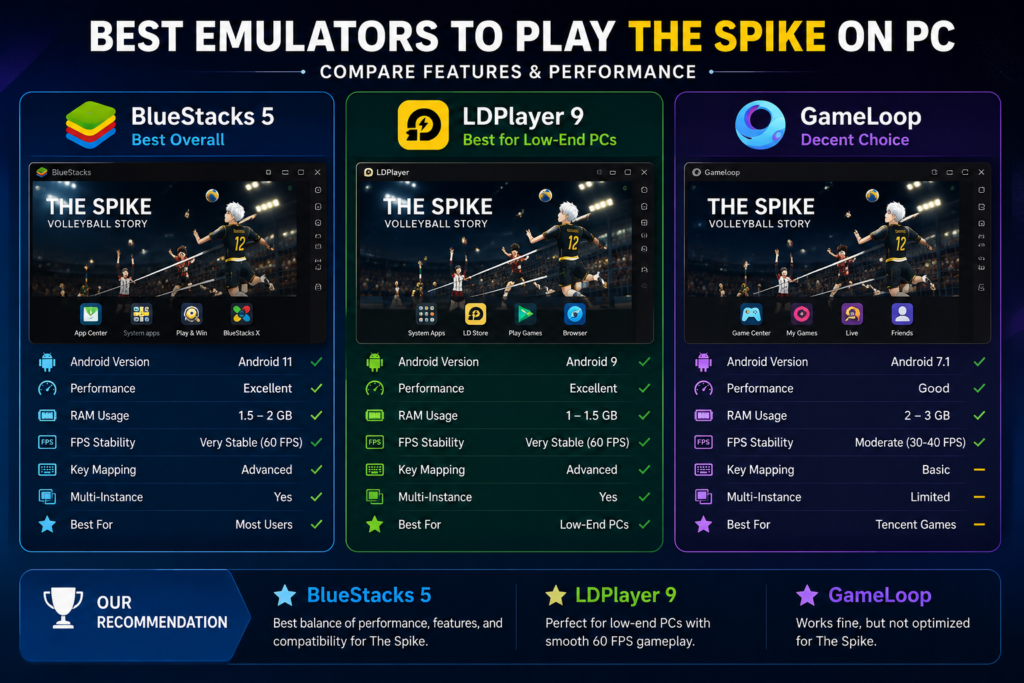
There are three main emulators that work well for The Spike on PC: BlueStacks 5, LDPlayer 9, and GameLoop. Each one has its strengths, so it helps to know the difference before you download anything.
| Feature | BlueStacks 5 | LDPlayer 9 | GameLoop |
| Android Version | Android 11 | Android 9 | Android 7.1 |
| RAM Usage | ~1.5–2 GB | ~1–1.5 GB | ~2–3 GB |
| Performance | Excellent | Excellent | Good |
| FPS Stability | Very Stable | Very Stable | Moderate |
| Key Mapping | Advanced | Advanced | Basic |
| Multi-Instance | Yes | Yes | Limited |
| Macro Support | Yes | Yes | No |
| Free to Use | Yes (with ads) | Yes (no ads) | Yes |
| Best For | Most users | Low-end PCs | Tencent games |
| Overall Rating | ★★★★★ Best Pick | ★★★★☆ Runner-Up | ★★★☆☆ Decent |
BlueStacks 5 – Best Overall Choice
BlueStacks is the most popular Android emulator in the world, used by over 500 million people. It has the most powerful engine, smooth FPS delivery, and a large support community. The key mapping tool is excellent and easy to set up for The Spike’s two-button controls.
It is the top pick for most players, especially if your PC has 8 GB of RAM or more.
LDPlayer 9 – Best for Low-End PCs
LDPlayer is lightweight and fast. It uses less memory than BlueStacks while still delivering 60 FPS gameplay on mid-range hardware. If your PC has 4 GB RAM or an older processor, LDPlayer is the smarter choice.
It also has no ads, which is a nice bonus compared to the free version of BlueStacks.
GameLoop – Decent but Not Ideal
GameLoop is made by Tencent and works best with their own games like PUBG Mobile. It can run The Spike, but it is not optimized for HAEGIN’s game. It uses more resources without matching the performance of the other two.
Use GameLoop only if you already have it installed for another game.
PC Requirements to Play The Spike on PC
Before you play the spike on pc using an emulator, make sure your computer meets the requirements. Here are the minimum and recommended specs based on BlueStacks’ official guidelines and The Spike’s performance needs.
| Requirement | Minimum Specs | Recommended Specs |
| Operating System | Windows 10 (64-bit) | Windows 10 / 11 (64-bit) |
| Processor | Intel Core i3 (4th Gen) | Intel Core i5 / AMD Ryzen 5 |
| RAM | 4 GB | 8 GB or more |
| Storage | 5 GB free (SSD preferred) | 10 GB free SSD |
| Graphics | Intel HD Graphics 4000+ | NVIDIA GTX 960 / AMD RX 470 |
| Target FPS | 30 FPS | 60 FPS (locked, stable) |
| Virtualization | Must be enabled in BIOS | Must be enabled in BIOS |
Mac users can use BlueStacks for macOS (version 10.14 or later). If you have an Apple Silicon Mac (M1, M2, M3, or M4), BlueStacks has a native ARM version that works well with The Spike.
How to Play The Spike on PC via BlueStacks (Step-by-Step)
Follow these steps carefully, and you will have The Spike running in about 15 minutes. This BlueStacks guide for The Spike covers the full process from playing The Spike on pc using an emulator to your first match.
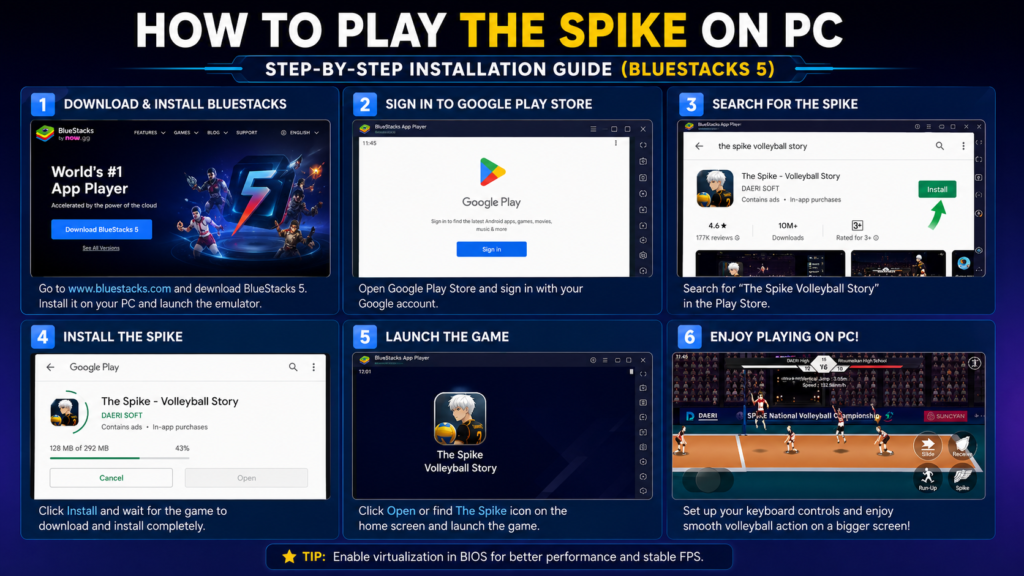
Step 1 – Download and Install BlueStacks
1. Go to the official BlueStacks website at bluestacks.com. Always download from the official site to avoid unsafe files.
2. Click ‘Download BlueStacks 5’. The installer is around 700 MB to 1 GB, depending on your region.
3. Right-click the installer and choose ‘Run as Administrator’. Follow the on-screen steps. Installation takes about 5 to 8 minutes.
4. Launch BlueStacks 5. The first launch will take a bit longer as it sets up the Android environment.
Step 2 – Sign In to Google Play Store
1. Click the Google Play Store icon on the BlueStacks home screen.
2. Sign in with your Google account. You can use your existing account or create a new one just for emulator gaming.
3. Complete any verification steps (phone or email OTP). Once done, the Play Store loads normally.
Step 3 – Install and Launch The Spike
1. Search for ‘The Spike Volleyball Story’ in the Play Store search bar.
2. Click Install. The game is about 200 to 300 MB. Download time depends on your internet speed.
3. Click Open when it finishes. The game will download a few extra files on its first launch — this is normal.
Step 4 – Set Up Keyboard Controls
The Spike uses only two main buttons. Setting up keyboard controls in BlueStacks takes about 2 minutes and makes the game much easier to play on PC.
• With the game open, click the keyboard icon in the right-side toolbar (or press Ctrl + Shift + A).
• Drag a ‘Tap’ control onto the spike/jump button on screen. Assign it to the Spacebar.
• Drag another ‘Tap’ control onto the receive/serve button. Assign it to Z or X.
• Click Save. Your keyboard layout is now ready.
Download the latest version of The Spike MOD APK for smoother gameplay and unlocked premium features.
How to Install The Spike via LDPlayer 9
LDPlayer is a great option if BlueStacks feels heavy on your PC. It is lighter, faster to install, and runs The Spike very well on older hardware. Here is how to set it up.
• Go to ldplayer.net and download LDPlayer 9 (64-bit). The file is about 400 MB.
• Run the installer and choose your install path. Make sure you have at least 10 GB of free space on that drive.
• Launch LDPlayer and sign in to the built-in Google Play Store.
• Search for ‘The Spike’ in the Play Store and click Install.
• Once installed, open LDPlayer’s keyboard mapping tool and set up your spike and receive keys.
• Go to Settings → Performance. Set CPU cores to 2–4 and RAM to 3–4 GB for the best experience.
How to Install The Spike via GameLoop
GameLoop does not use the Google Play Store for non-Tencent games. So you will need to sideload The Spike using an APK file. Here is how to do it safely.
• Download GameLoop from the official site at gameloop.com. Install and launch it.
• Download The Spike APK from APKPure.com or APKMirror.com. These sites host original, unmodified APK files from the Play Store.
• In GameLoop, click the Android phone icon in the left toolbar to open the file manager.
• Navigate to your APK file and install it. The Spike will appear in your GameLoop app drawer.
• Set up key mappings through GameLoop’s built-in controller editor.
Emulator Optimization: How to Get Smooth 60 FPS
Getting the game installed is easy. But getting it to run at a smooth and stable 60 FPS requires a few tweaks. These settings work for both BlueStacks and LDPlayer.
Best BlueStacks Settings for The Spike
| Setting | Recommended Value | Why It Matters |
| CPU Cores | 4 Cores | Prevents lag during match loading |
| RAM Allocation | 4096 MB (4 GB) | Stops mid-match crashes |
| Performance Mode | High Performance | Prioritizes the emulator over background apps |
| FPS Cap | 60 FPS | Keeps frame pacing smooth and consistent |
| Graphics Engine | Vulkan or OpenGL | Vulkan for NVIDIA; OpenGL for older GPUs |
| Resolution | 1280 x 720 | Best balance of clarity and speed |
| ASTC Texture | Enabled | Reduces memory usage on the graphics card |
In-Game Graphics Settings
Inside The Spike, go to Settings and then Graphics. Set the quality to High if you are on recommended specs, or Medium for minimum-spec machines. Make sure the frame rate option is set to 60Hz. This matches the emulator output and prevents choppy rendering.
Windows Performance Tips
• Set your PC Power Plan to High Performance in Control Panel.
• Close background apps like Chrome, Discord, and Spotify before launching the emulator.
• Update your GPU drivers. NVIDIA and AMD regularly release updates that improve emulator performance.
• On Windows 11, enable Hardware-Accelerated GPU Scheduling in Settings for a small but free performance boost.
• Disable Windows Game Mode if you notice frame rate instability. Go to Settings → Gaming → Game Mode and turn it off.
Troubleshooting: Fix Lag, Crashes, and Common Issues
Even with a good setup, you might run into a few problems. Here are the most common issues players face when setting up The Spike on PC and exactly how to fix each one.
Problem 1: Game Is Lagging, or FPS Is Dropping
Cause: Too many background processes, not enough RAM allocated, or the wrong graphics renderer.
Fix: Increase RAM allocation to 4 GB in emulator settings. Switch graphics engine between Vulkan and OpenGL to find which runs better on your GPU. Close all heavy background apps. If you are on a laptop, plug in the charger and switch to High Performance power mode.
Problem 2: BlueStacks Freezes on the Loading Screen
Cause: Virtualization is disabled, or Hyper-V is conflicting with BlueStacks on Windows.
Fix: Go to Control Panel → Programs → Turn Windows Features On/Off. Disable Hyper-V if it is checked. Restart your PC and try again. If the issue persists, enter the BIOS and make sure Intel VT-x or AMD-V is enabled.
Problem 3: The Spike Crashes Right After Opening
Cause: Corrupted installation or outdated Android version in the emulator.
Fix: Uninstall The Spike from within the emulator. Clear the emulator cache in Settings → Storage → Clear Cache. Reinstall the game from the Play Store. If you are using GameLoop, consider switching to BlueStacks since its newer Android version handles game updates better.
Problem 4: Black Screen When Launching the Game
Cause: Wrong graphics renderer or outdated GPU driver.
Fix: In BlueStacks Settings → Graphics, try switching between Vulkan, OpenGL, and DirectX 11 one at a time. Update your GPU drivers. On NVIDIA cards, open NVIDIA Control Panel, find BlueStacks, and set it to use the dedicated GPU instead of integrated graphics.
Problem 5: Keyboard Controls Not Working
Cause: Key mapping conflicts with a built-in emulator shortcut.
Fix: Delete your existing key mappings and start fresh. Avoid keys that overlap with emulator shortcuts, such as Ctrl+Shift+F (full screen toggle). Try reassigning your spike and receive buttons to F1/F2 or numpad keys, which rarely conflict with anything.
Problem 6: Emulator Will Not Install
Cause: Antivirus is blocking the installer, or Windows is restricting it.
Fix: Right-click the installer and select ‘Run as Administrator.’ If your antivirus flags it, add a temporary exclusion for the installer file. BlueStacks and LDPlayer are both trusted and safe applications. Your antivirus is generating a false positive due to the low-level system access that emulators need.
Pro Tips for Playing The Spike on PC
Now that you are set up and running, here are a few extra tips to get the most out of playing on PC.
Use Multi-Instance to Run Two Accounts
Both BlueStacks and LDPlayer support running two instances at the same time. This means you can run a second account alongside your main one. It is a popular way to collect daily rewards on a second account while playing ranked on your primary.
Record Your Matches with OBS
On PC, you have easy access to free screen recording tools like OBS Studio. Record your ranked matches and watch them back to find patterns in your mistakes. This is something almost impossible to do on mobile, and it can speed up your improvement a lot.
Resize the Window for Better Court Visibility
Drag the BlueStacks window to take up more of your monitor. The Spike’s court becomes much more visible at larger sizes. You get a better read on ball trajectory and more time to react to fast serves.
Recalibrate Your Timing
On mobile, touch input adds about 10 to 30 milliseconds of delay. On a PC with a keyboard, that drops to under 5 milliseconds. This means your timing window is effectively wider. Spend a few minutes in practice mode adjusting your spike timing you will likely find you can react to faster attacks than before.
Frequently Asked Questions (FAQ)
Is it legal to play The Spike on PC using an emulator?
Yes, it is completely legal. Playing the spike on pc using an emulator is a legitimate software tool. Playing mobile games on PC through an emulator is allowed by Google and does not violate any laws. HAEGIN does not officially prohibit emulator use for The Spike as of 2025.
Will my game progress sync between phone and PC?
Yes. As long as you sign in with the same Google Play account on both devices, your progress, characters, and purchases will sync automatically through HAEGIN’s servers. You can switch between your phone and PC freely.
Which emulator is best — BlueStacks or LDPlayer?
BlueStacks 5 is the best overall pick for most users. LDPlayer 9 is the better option if your PC has 4 GB of RAM or an older processor. Both run The Spike well at 60 FPS on recommended hardware.
Can I play The Spike on a Mac?
Yes. BlueStacks has a macOS version that supports Mac computers running macOS 10.14 or later. It works on both Intel Macs and Apple Silicon Macs (M1, M2, M3, M4) through a native ARM build.
Why is The Spike running slow on BlueStacks?
The most common causes are: virtualization is not enabled in the BIOS, RAM allocated to the emulator is too low, the wrong graphics renderer is selected, or too many background apps are consuming memory. Follow the optimization tips in Section 7 of this guide to fix these issues.
Can I use a controller with The Spike on PC?
Yes. BlueStacks and LDPlayer both support Xbox, PlayStation, and generic USB controllers. In the key mapping editor, you can bind game actions to controller buttons. The Spike’s two-button control scheme maps very well to a gamepad’s face buttons.
Is BlueStacks safe to download?
Yes. BlueStacks is a trusted application used by over 500 million people worldwide. Download it only from the official website at bluestacks.com. Some antivirus programs may flag the installer as a false positive due to the system-level access emulators need — the software itself is completely safe.
Conclusion Start Playing The Spike on PC Today
Playing The Spike on PC using an emulator is one of the best upgrades you can make as a volleyball gaming fan. You get a bigger screen, sharper controls, stable performance, and none of the frustrations that come with a small phone screen.
To summarize what you learned in this guide: BlueStacks 5 and LDPlayer 9 are your two best emulator options. Your PC needs at least 4 GB of RAM and a 64-bit version of Windows 10 or later. Setup takes under 15 minutes. And with the optimization and troubleshooting tips above, you should be running a smooth, lag-free game from day one.
The control precision you get on PC is a real advantage. Your spike timing becomes more reliable. Your reads on the court improve. Whether you are grinding story mode or climbing the ranked leaderboard, the emulator experience puts you in the best position to improve and win.
So go ahead play the spike on pc using emulator BlueStacks or LDPlayer, install The Spike, set up your keys, and get on the court. The game is waiting